2024年5月3日 星期五

VBA / Excel VBA將檔案另存成PDF再使用自訂python程式加密PDF 4

在前一篇 VBA / Excel VBA將檔案另存成PDF再使用自訂python程式加密PDF 3
曾經思考有沒有辦法不用先產生檔案的方式
轉了很多彎,後來看PyPDF2的說明
PdfWriter()的write()參數,可以是個路徑
:param stream: An object to write the file to. The object can support
   the write method and the tell method, similar to a file object, or
   be a file path, just like the fileobj, just named it stream to keep
   existing workflow.
這就代表不需要是實體檔案路徑
所以改寫程式碼如下
 1
 2
 3
 4
 5
 6
 7
 8
 9
10
11
12
13
14
15
16
17
18
19
20
21
22
23
24
25
26
27
28
29
30
31
32
33
34
35
36
37
38
39
import os, sys
from PyPDF2 import PdfReader 
from PyPDF2 import PdfWriter

def addPw(ar1, ar2):
    #print(ar1,ar2)
    pdf_path =ar1
    pswd=ar2
    
    #不含副檔名的檔案名稱
    fileName = os.path.basename(pdf_path).replace(".pdf", "")

    #最後輸出的檔案路徑  因為檔案加密之後 不能寫回原本的檔案   
    newFile = os.path.dirname(pdf_path)+"\\"+ fileName +"_pw.pdf"    
    
    #讀取原始檔案
    in_file = open(pdf_path, "r+b")
    in_pdf = PdfReader(in_file)
    
    #加密檔案
    out_pdf = PdfWriter()
    out_pdf.append_pages_from_reader(in_pdf)
    out_pdf.encrypt(pswd)
    
    #寫出檔案
    out_pdf.write(newFile)
    
    #關閉open()開啟的檔案
    in_file.close()

    #刪除PdfReader() PdfWriter()
    del in_pdf, out_pdf
    #print("檔案加密完成")
    
addPw(sys.argv[1], sys.argv[2])

#測試用
#addPw(r"D:\Google 雲端硬碟\莊生的箱子\網站_程式練習\VBA練習\PDF 轉檔 加密\output\臺北市.pdf","123456")
#addPw(r"D:\Google 雲端硬碟\莊生的箱子\網站_程式練習\python練習\創建PDF\output\臺北市.pdf","123456")
 

VBA / Excel VBA將檔案另存成PDF再使用自訂python程式加密PDF 3

再次修改 VBA / Excel VBA將檔案另存成PDF再使用自訂python程式加密PDF 的程式碼
1.使用 WScript.Shell 執行命令列、2.在迴圈增加 "DoEvents" 移交控制權
這次是修改python程式碼
原本的程式碼透過 shutil套件複製檔案2次
1個用來增加密碼
1個是用來寫入增加密碼的PDF
而原因是增加密碼的PDF無法寫回原檔案
後來覺得能否可以不用複製檔案??
目前的作法是用 fitz套件產生一個有一頁空白A4的實體PDF
然後用 PyPDF2套件的 pdfReader讀取原始檔
再用PyPDF2套件的 PdfWriter的append_pages_from_reader附加pdfReader
用encrypt增加密碼
最後再寫入空白A4的實體PDF
流程如下
#2 引入 fitz套件
備註:安裝套件要使用這個名稱「PyMuPDF」
#15-22 產生一個一頁A4空白頁的PDF
之後加密的流程大同小異
修改後的程式碼如下
 1
 2
 3
 4
 5
 6
 7
 8
 9
10
11
12
13
14
15
16
17
18
19
20
21
22
23
24
25
26
27
28
29
30
31
32
33
34
35
36
37
38
39
40
41
42
43
44
45
46
47
48
49
import os, sys
import fitz
from PyPDF2 import PdfReader 
from PyPDF2 import PdfWriter

def addPw(ar1, ar2):
    #print(ar1,ar2)
    pdf_path =ar1
    pswd=ar2
    
    #不含副檔名的檔案名稱
    fileName = os.path.basename(pdf_path).replace(".pdf", "")
    #print(fileName)
    
    #產生一個A4空白頁的PDF
    doc = fitz.open()
    #To add a blank page,
    w, h = fitz.paper_size("A4") 
    # -1, insertion point: end of document
    doc.new_page(-1, width = w, height = h)    
    newFile = os.path.dirname(pdf_path)+"\\"+ fileName +"_pw.pdf"
    doc.save(newFile)
    #print(newFile)
    
    #讀取檔案
    in_file = open(pdf_path, "r+b")
    in_pdf = PdfReader(in_file)
    
    #加密檔案
    out_pdf = PdfWriter()
    out_pdf.append_pages_from_reader(in_pdf)
    out_pdf.encrypt(pswd)
    
    #讀取用來存儲的檔案
    out_file = open(newFile, "wb")
    #寫出檔案
    out_pdf.write(out_file)
    
    #關閉open()開啟的檔案
    in_file.close()
    out_file.close()
    #刪除PdfReader() PdfWriter()
    del in_pdf, out_pdf
    #print("檔案加密完成")
    
addPw(sys.argv[1], sys.argv[2])

#測試用
#addPw(r"D:\Google 雲端硬碟\莊生的箱子\網站_程式練習\python練習\創建PDF\output\臺北市.pdf","123456")

2024年4月30日 星期二

C# / Excel VBA將檔案另存成PDF再使用自訂C#程式加密PDF

本篇是 VBA / Excel VBA將檔案另存成PDF再使用自訂python程式加密PDF 的番外
在爬文的過程中,可能因為關鍵字的關係「 VBA PDF 加密」
為了下載檔案而加入會員,還好檔案還在、還好不需要什麼鬼積分
依樣畫葫蘆可以得到相同結果
但是這個開源ProtectPDF.dll引起我的興趣
再次爬文之後,在這篇 VBA : encrypted / password protected PDF for MS Office 可以看到使用相同名稱的DLL
但是這篇文章的作者沒有提供ProtectPDF.dll檔案
下面有人問他 "Where is ProtectPDF.dll download site " 也沒有得到回應
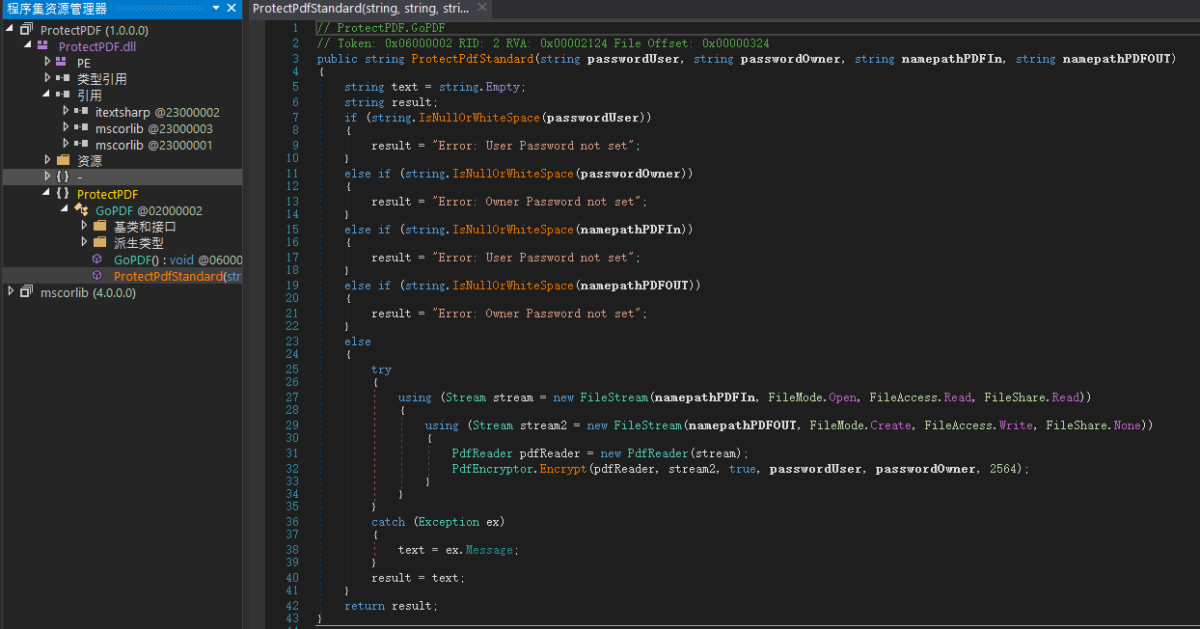
所以嘗試用dnSpy看看能不能反編譯在mobile01論壇下載的DLL,看看兩篇文章的DLL是不是一樣的
根據dnSpy的編譯結果,可以確認至少功能是一樣的
這個DLL是用C#編寫的,主要是使用ITEXTSHARP.dll的功能
Rummaging through all the above to address the simple task of filling in a gap in the Word/Excel object model functionality to save an encrypted PDF and set different security options from VBA, I found that the simplest and quickest solution to make a custom COM wrapper around one of well-known .Net open source libraries. As an in house component, you shouldn’t have to worry about getting IT approval.

If you not familiar with making COM visible .NET DLL, here is an attached Visual Studio 2013 .NET v 4.0 project, written in C# and wrapping a popular library ITEXTSHARP.dll which is an .NET PDF library ported from Java.

For simplicity, ITEXTSHARP.dll is imbedded into single output resulting library ProtectPDF.dll with a single method 
GoPDF.ProtectPdfStandard(string passwordUser,  string passwordOwner, string namepathPDFIn, string namepathPDFOUT )
 
所以嘗試改成用exe來執行程式碼
基本上就是把ProtectPdfStandard()抓出來,在main()接收參數後執行
流程:

1.在visual studio新增C#解決方案

2.修改預設的Program.cs程式碼,也可以修改名稱,visual studio會自動修改相關的登錄設定

#3 引用 iTextSharp.text.pdf 
#20-23 接收命令列傳來的參數
#29 將參數傳到 自訂函數ProtectPdfStandard
#39-81 ProtectPdfStandard的內容,都是從ProtectPdfStandard()抓來的
重點是在#61-70執行iTextSharp.text.pdf的PdfReader.Encrypt方法

Program.cs程式碼如下
 1
 2
 3
 4
 5
 6
 7
 8
 9
10
11
12
13
14
15
16
17
18
19
20
21
22
23
24
25
26
27
28
29
30
31
32
33
34
35
36
37
38
39
40
41
42
43
44
45
46
47
48
49
50
51
52
53
54
55
56
57
58
59
60
61
62
63
64
65
66
67
68
69
70
71
72
73
74
75
76
77
78
79
80
81
82
using System;
using System.IO;
using iTextSharp.text.pdf;

namespace goPdf
{
    internal class Program
    {
        static void Main(string[] args)
        {
            //Console.WriteLine($"parameter count = {args.Length}");
            /*
            for (int i = 0; i < args.Length; i++)
            {
              Console.WriteLine($"Arg[{i}] = [{args[i]}]");
            }*/
            if (args.Length > 0)
            {
                //
                string passwordUser = args[0];
                string passwordOwner = args[1];
                string inputPath = args[2];
                string outputPath = args[3];
                //Console.WriteLine(passwordUser);
                //Console.WriteLine(passwordOwner);
                //Console.WriteLine(inputPath);
                //Console.WriteLine(outputPath);
                //
                string errorText = ProtectPdfStandard(passwordUser, passwordOwner, inputPath, outputPath);
                Console.WriteLine(errorText);
                //
            }
            else
            {
                Console.WriteLine("沒有輸入參數");
            }
        }

        public static string ProtectPdfStandard(string passwordUser, string passwordOwner, string namepathPDFIn, string namepathPDFOUT)
        {
            string text = string.Empty;
            string result;
            if (string.IsNullOrWhiteSpace(passwordUser))
            {
                result = "Error: User Password not set";
            }
            else if (string.IsNullOrWhiteSpace(passwordOwner))
            {
                result = "Error: Owner Password not set";
            }
            else if (string.IsNullOrWhiteSpace(namepathPDFIn))
            {
                result = "Error: User Password not set";
            }
            else if (string.IsNullOrWhiteSpace(namepathPDFOUT))
            {
                result = "Error: Owner Password not set";
            }
            else
            {
                try
                {
                    using (Stream stream = new FileStream(namepathPDFIn, FileMode.Open, FileAccess.Read, FileShare.Read))
                    {
                        using (Stream stream2 = new FileStream(namepathPDFOUT, FileMode.Create, FileAccess.Write, FileShare.None))
                        {
                            PdfReader pdfReader = new PdfReader(stream);
                            PdfEncryptor.Encrypt(pdfReader, stream2, true, passwordUser, passwordOwner, 2564);
                        }
                    }
                }
                catch (Exception ex)
                {
                    text = ex.Message;
                }
                result = text;
            }
            return result;
        }

    }
}


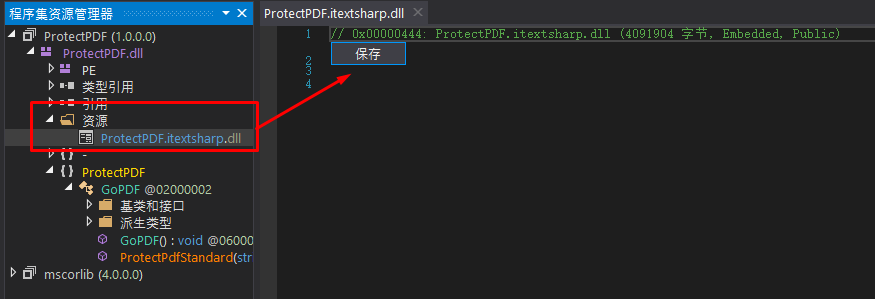
3.在參考引用ITEXTSHARP.dll

備註:ITEXTSHARP.dll是從dnSpy另存出來的


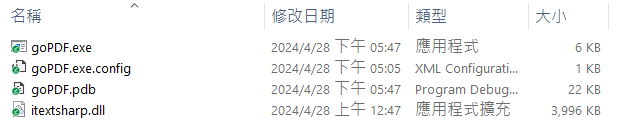
4.測試或者建置,在bin資料夾的Debug資料夾內會產生exe檔跟相關的檔案,包含參考的ITEXTSHARP.dll


5.在Excel VBA內執行

這邊的流程就大同小異,不過因為這個函數接收4個參數
passwordUser 開啟密碼
passwordOwner 編輯權限密碼
inputPath 輸入檔案路徑
outputPath 輸出檔案路徑

所以程式碼稍微修改如下
#42-57 新增了一個陣列,用來存儲輸出的檔案路徑
#72-75 設定參數,密碼的部分之後可以再視情框修改
#78 執行命令列

 
 1
 2
 3
 4
 5
 6
 7
 8
 9
10
11
12
13
14
15
16
17
18
19
20
21
22
23
24
25
26
27
28
29
30
31
32
33
34
35
36
37
38
39
40
41
42
43
44
45
46
47
48
49
50
51
52
53
54
55
56
57
58
59
60
61
62
63
64
65
66
67
68
69
70
71
72
73
74
75
76
77
78
79
80
81
82
83
84
85
86
87
88
89
90
91
92
93
94
95
Public Sub tt3()

    Application.DisplayAlerts = False
    Application.ScreenUpdating = False
    
    Dim fso As Object
    Set fso = CreateObject("Scripting.FileSystemObject")
    
    ActiveWorkbook.Sheets(1).Activate
    
    '目前檔案路徑
    nPath = ActiveWorkbook.Path
    '輸出資料夾名稱
    strFolderName = "output"
    
    '完整的輸出資料夾路徑
    outputFolderPath = nPath & Application.PathSeparator & strFolderName & Application.PathSeparator

    '判斷輸出資料夾是否存在
    strFolderExists = Dir(nPath & Application.PathSeparator & strFolderName, vbDirectory)
    
    If strFolderExists = "" Then
        '不存在則新增
        fso.CreateFolder nPath & Application.PathSeparator & strFolderName
    Else
        '存在則移除 再新增
        fso.DeleteFolder nPath & Application.PathSeparator & strFolderName, True 'True 強制刪除
        fso.CreateFolder nPath & Application.PathSeparator & strFolderName
    End If
    
    '將工作表轉存為PDF檔
    For i = 2 To Sheets.Count
        nName = Sheets(i).Name
        Sheets(i).Copy
        ActiveWorkbook.ExportAsFixedFormat Type:=xlTypePDF, Filename:=outputFolderPath & nName & ".pdf"
        ActiveWorkbook.Close False
    Next
    
    '讀取output資料夾的PDF 如果存在 回傳檔案名稱.副檔名
    pdfFile = Dir(outputFolderPath & "*.pdf")
        
    Dim fileArr() As String
    Dim outArr() As String
    
    i = 0
    Do While pdfFile <> ""
        ReDim Preserve fileArr(i)
        ReDim Preserve outArr(i)
        fileArr(i) = outputFolderPath & pdfFile
        'Debug.Print outputFolderPath & pdfFile
        
        outArr(i) = outputFolderPath & Split(pdfFile, ".")(0) & "_PW.pdf"
        'Debug.Print outputFolderPath & Split(pdfFile, ".")(0) & "_PW.pdf"
        
        i = i + 1
        pdfFile = Dir()
    Loop
        
    'Debug.Print fileArr(0)
    '陣列上限(序位值)
    num = UBound(fileArr)
    
    Dim wsh As Object
    Set wsh = VBA.CreateObject("WScript.Shell")
    Dim waitOnReturn As Boolean: waitOnReturn = True
    Dim windowStyle As Integer: windowStyle = 0
    Dim errorCode As Long
    
    For i = 0 To num
            
        DoEvents
        passwordUser = "123"
        passwordOwner = "456"
        inputPath = fileArr(i)
        outputPath = outArr(i)
        
        '透過WScript.Shell 執行pdf加密程式
        s = Chr(34) & Excel.ActiveWorkbook.Path & "\C#\goPDF\" & "goPDF.exe" & Chr(34) & Chr(32) & Chr(34) & passwordUser & Chr(34) & Chr(32) & Chr(34) & passwordOwner & Chr(34) & Chr(32) & Chr(34) & inputPath & Chr(34) & Chr(32) & Chr(34) & outputPath & Chr(34)
            
'        Debug.Print s
        Shell s

        errorCode = wsh.Run(s, windowStyle, waitOnReturn)

        If errorCode = 0 Then
'            MsgBox "Done! No error to report."
            Debug.Print "輸出:" & fileArr(i) & Chr(32) & "到:" & outArr(i)
        Else
            MsgBox "Program exited with error code " & errorCode & "."
        End If
    Next
    
    Application.DisplayAlerts = True
    Application.ScreenUpdating = True
End Sub
 

參考資源

使用vba + 開源函式庫,解決excel 另存pdf 無法加密問題(vba範例)

VBA / Excel VBA將檔案另存成PDF再使用自訂python程式加密PDF 2

本篇主要修改 VBA / Excel VBA將檔案另存成PDF再使用自訂python程式加密PDF的程式碼
讓程式執行更為流暢
主要修改的地方有以下兩點

1.使用 WScript.Shell 執行命令列

因為WScript.Shell可以透過第3個參數 waitOnReturn=True,來讓程式同步執行(一個執行完畢,再執行下一個,依序執行)

2.在迴圈增加 "DoEvents" 移交控制權

這樣可以讓程式在執行會花比較久時間的流程時,讓系統還可以做其他的事情

修改後的VBA 程式碼如下
 1
 2
 3
 4
 5
 6
 7
 8
 9
10
11
12
13
14
15
16
17
18
19
20
21
22
23
24
25
26
27
28
29
30
31
32
33
34
35
36
37
38
39
40
41
42
43
44
45
46
47
48
49
50
51
52
53
54
55
56
57
58
59
60
61
62
63
64
65
66
67
68
69
70
71
72
73
74
75
76
77
78
79
80
81
82
83
84
85
86
87
88
89
90
'
'透過WScript.Shell 執行pdf加密程式
'
Public Sub tt2()

    Application.DisplayAlerts = False
    Application.ScreenUpdating = False
    
    Dim fso As Object
    Set fso = CreateObject("Scripting.FileSystemObject")
    
    ActiveWorkbook.Sheets(1).Activate
    
    '目前檔案路徑
    nPath = ActiveWorkbook.Path
    '輸出資料夾名稱
    strFolderName = "output"
    
    '完整的輸出資料夾路徑
    outputFolderPath = nPath & Application.PathSeparator & strFolderName & Application.PathSeparator

    '判斷輸出資料夾是否存在
    strFolderExists = Dir(nPath & Application.PathSeparator & strFolderName, vbDirectory)
    
    If strFolderExists = "" Then
        '不存在則新增
        fso.CreateFolder nPath & Application.PathSeparator & strFolderName
    Else
        '存在則移除 再新增
        fso.DeleteFolder nPath & Application.PathSeparator & strFolderName, True 'True 強制刪除
        fso.CreateFolder nPath & Application.PathSeparator & strFolderName
    End If
    
    '將工作表轉存為PDF檔
    For i = 2 To Sheets.Count
        nName = Sheets(i).Name
        Sheets(i).Copy
        ActiveWorkbook.ExportAsFixedFormat Type:=xlTypePDF, Filename:=outputFolderPath & nName & ".pdf"
        ActiveWorkbook.Close False
    Next
    
    '讀取output資料夾的PDF 如果存在 回傳檔案名稱.副檔名
    pdfFile = Dir(outputFolderPath & "*.pdf")
        
    Dim fileArr() As String
    i = 0
    Do While pdfFile <> ""
        ReDim Preserve fileArr(i)
        fileArr(i) = outputFolderPath & pdfFile
        'Debug.Print outputFolderPath & pdfFile
        
        i = i + 1
        pdfFile = Dir()
    Loop
        
    'Debug.Print fileArr(0)
    '陣列上限(序位值)
    num = UBound(fileArr)
    
    Dim wsh As Object
    Set wsh = VBA.CreateObject("WScript.Shell")
    Dim waitOnReturn As Boolean: waitOnReturn = True
    Dim windowStyle As Integer: windowStyle = 0
    Dim errorCode As Long
    
    For i = 0 To num
    
        DoEvents
        sourceFilename = fileArr(i)
        setPassword = "123456"
        
        '透過WScript.Shell 執行pdf加密程式
        s = Chr(34) & Excel.ActiveWorkbook.Path & "\" & "0426_3.exe" & Chr(34) & Chr(32) & Chr(34) & sourceFilename & Chr(34) & Chr(32) & Chr(34) & setPassword & Chr(34)
            
        'Debug.Print s
        'Shell s
        
        errorCode = wsh.Run(s, windowStyle, waitOnReturn)
        
        If errorCode = 0 Then
'            MsgBox "Done! No error to report."
            Debug.Print "輸出:" & fileArr(i)
        Else
            MsgBox "Program exited with error code " & errorCode & "."
        End If
    Next
    
    Application.DisplayAlerts = True
    Application.ScreenUpdating = True
End Sub

2024年4月26日 星期五

VBA / Excel VBA將檔案另存成PDF再使用自訂python程式加密PDF

VBA能否將excel轉成加密的PDF?

這個是在Line的excel社團看到的提問

其中的管理員提供了一個網路教學

這個教學是使用 Adobe Acrobat 物件

但是前提是必須先安裝付費版的 Adobe Acrobat

我後來想起之前彰化一整天有分享某個客製程式

其中有PDF加密功能,這個功能是在VBA執行他自己寫的python程式

經過自己土炮測試之後

我的構想,整體流程可以分成三部分

第一部分是在Excel透過VBA將工作表另存成PDF

第二部分是透過python程式加密PDF

第三部分是在Excel VBA執行 python程式

1.在Excel透過VBA將工作表另存成PDF

這是透過Excel的內建功能將工作表複製到新的工作簿

然後再存成PDF

流程大致如下

透過迴圈,使用工作簿功能ExportAsFixedForma逐一將工作表轉成PDF

1
2
3
4
5
6
    For i = 2 To Sheets.Count
        nName = Sheets(i).Name
        Sheets(i).Copy
        ActiveWorkbook.ExportAsFixedFormat Type:=xlTypePDF, Filename:=outputFolderPath & nName & ".pdf"
        ActiveWorkbook.Close False
    Next


2.透過python程式加密PDF

這裡的知識點是如何讓python接收外部參數

最簡單的方式 透過sys.argv來接收從cmd傳入的參數

1
2
3
4
5
6
7
8
9
import sys

def getArg(ar1, ar2):
    
    print()
    print('接收參數:', ar1,ar2)
    print()

getArg(sys.argv[1], sys.argv[2])


將以上的程式碼存成xx.py (xx是指隨意名稱)

然後在cmd執行 python xx.py 1 2 

就會輸出

接收參數:1 2

另一個知識點是如何加密PDF

可以利用套件 PyPDF2來處理

流程如下

#6~43 自訂一個函數

#8 第一個參數為檔案路徑

#9 第二個參數為密碼

#12 取出不含副檔名的檔案名稱

os.path.basename(pdf_path) 可以取出檔案路徑中最後一層,也就是檔案名稱.副檔名

#15 設定暫存檔的完整路徑

#17 設定用來寫入的檔案路徑

os.path.dirname(pdf_path) 可以取出最後一層之外的路徑,也就是檔案所在的目錄

因為加密後的檔案無法寫回原檔案,所以寫入另一個pdf

#21-23 使用套件 shutil複製原檔案產生新檔案

#25-27 使用PyPDF2的PdfReader物件來讀取PDF

 要先用open讀取檔案,再用PdfReader讀取PDF

#29-32 加密PDF

使用PyPDF2的PdfWriter物件的append_pages_from_reader獲取從PdfReader讀取的PDF

再用encrypt來加密

#34-36 將加密後的檔案寫入到用來輸出的檔案

因為產生一個空白的PDF還需要用別的套件生成

感覺太麻煩...

所以直接複製原本的檔案

#38-39 關閉利用open開啟的檔案

#41 刪除暫存檔

#42 關閉 PyPDF2的PdfReader、PdfReader物件

#43 如果之後封裝的程式要在背景執行,就不能有任何的print寫出

 1
 2
 3
 4
 5
 6
 7
 8
 9
10
11
12
13
14
15
16
17
18
19
20
21
22
23
24
25
26
27
28
29
30
31
32
33
34
35
36
37
38
39
40
41
42
43
44
45
46
47
48
49
50
import os, sys
import shutil
from PyPDF2 import PdfReader 
from PyPDF2 import PdfWriter

def addPw(ar1, ar2):
    #print(ar1,ar2)
    pdf_path =ar1
    pswd=ar2
    
    #不含副檔名的檔案名稱
    fileName = os.path.basename(pdf_path).replace(".pdf", "")
    #print(fileName)
    #暫存檔 用來加密
    tempFile =os.path.dirname(pdf_path)+"\\"+ fileName + "_temp.pdf"
    #print(tempFile)
    #最後輸出的檔案  因為檔案加密之後 不能寫回原本的檔案
    newFile = os.path.dirname(pdf_path)+"\\"+ fileName +"_pw.pdf"
    #print(newFile)
    
    #複製產生檔案
    shutil.copyfile(pdf_path, tempFile)
    shutil.copyfile(pdf_path, newFile)
    
    #讀取暫存檔案
    in_file = open(tempFile, "r+b")
    in_pdf = PdfReader(in_file)
    
    #加密檔案
    out_pdf = PdfWriter()
    out_pdf.append_pages_from_reader(in_pdf)
    out_pdf.encrypt(pswd)
    
    #讀取用來存儲的檔案
    out_file = open(newFile, "wb")
    #寫出檔案
    out_pdf.write(out_file)
    
    #關閉open()開啟的檔案
    in_file.close()
    out_file.close()
    #刪除暫存檔
    os.remove(tempFile)
    #刪除PdfReader() PdfWriter()
    del in_pdf, out_pdf
    print("檔案加密完成")
    
addPw(sys.argv[1], sys.argv[2])

#addPw(r"C:\Users\edu\Desktop\PDF 轉檔 加密\output\臺北市.pdf","123456")

之後再用pyinstaller封裝成執行檔

3.在Excel VBA執行 python程式

#6-37 將工作表轉存成PDF

#39-51 讀取輸出資料夾內的所有PDF,將完整的檔案路徑寫入陣列中

#55-66 利用陣列進行迴圈

#59 是PDF密碼,之後可以再視需求來修改

 1
 2
 3
 4
 5
 6
 7
 8
 9
10
11
12
13
14
15
16
17
18
19
20
21
22
23
24
25
26
27
28
29
30
31
32
33
34
35
36
37
38
39
40
41
42
43
44
45
46
47
48
49
50
51
52
53
54
55
56
57
58
59
60
61
62
63
64
65
66
67
68
69
70
Public Sub export_encrypt_PDF()

    Application.DisplayAlerts = False
    Application.ScreenUpdating = False
    
    Dim fso As Object
    Set fso = CreateObject("Scripting.FileSystemObject")
    
    ActiveWorkbook.Sheets(1).Activate
    
    '目前檔案路徑
    nPath = ActiveWorkbook.Path
    '輸出資料夾名稱
    strFolderName = "output"
    
    '完整的輸出資料夾路徑
    outputFolderPath = nPath & Application.PathSeparator & strFolderName & Application.PathSeparator

    '判斷輸出資料夾是否存在
    strFolderExists = Dir(nPath & Application.PathSeparator & strFolderName, vbDirectory)
    
    If strFolderExists = "" Then
        '不存在則新增
        fso.CreateFolder nPath & Application.PathSeparator & strFolderName
    Else
        '存在則移除 再新增
        fso.DeleteFolder nPath & Application.PathSeparator & strFolderName, True 'True 強制刪除
        fso.CreateFolder nPath & Application.PathSeparator & strFolderName
    End If
    
    '將工作表轉存為PDF檔
    For i = 2 To Sheets.Count
        nName = Sheets(i).Name
        Sheets(i).Copy
        ActiveWorkbook.ExportAsFixedFormat Type:=xlTypePDF, Filename:=outputFolderPath & nName & ".pdf"
        ActiveWorkbook.Close False
    Next
    
    '讀取output資料夾的PDF 如果存在 回傳檔案名稱.副檔名
    pdfFile = Dir(outputFolderPath & "*.pdf")
        
    Dim fileArr() As String
    i = 0
    Do While pdfFile <> ""
        ReDim Preserve fileArr(i)
        fileArr(i) = outputFolderPath & pdfFile
        'Debug.Print outputFolderPath & pdfFile
        
        i = i + 1
        pdfFile = Dir()
    Loop
        
    'Debug.Print fileArr(0)
    '陣列上限(序位值)
    num = UBound(fileArr)
    
    For i = 0 To num
        sourceFilename = fileArr(i)
        setPassword = "123456"
        
        '透過cmd 執行pdf加密程式
        s = Chr(34) & Excel.ActiveWorkbook.Path & "\" & "0426_3.exe" & Chr(34) & Chr(32) & Chr(34) & sourceFilename & Chr(34) & Chr(32) & Chr(34) & setPassword & Chr(34)
            
        'Debug.Print s
        Shell s
    Next
    
    Application.DisplayAlerts = True
    Application.ScreenUpdating = True
End Sub


參考資料

如何用pyinstaller将需要传参数的Python文件生成exe文件

Python:批次加密PDF文件

别再问我怎么Python打包成exe了!

2024年4月19日 星期五

JS / 在Blogger增加”goTop”功能

在很多網站都能夠看到

當瀏覽到頁面結尾時,會出現一個回到最上面的圖示

點擊之後,網頁就會捲到最上面 在 tricohobby也有,這是佈景主題內建的

不過在blogger就要自己土炮

參考了兩個網站的做法

網頁Top按鈕 (網頁回到頂端),純 CSS+jQuery 免圖片

參考流程設定,不過因為圖示的設定會跑掉,所以圖示的呈現方式是參考另一種方式

jQuery 筆記 - 讓網頁回到最頂點寫法

參考圖示的呈現方式,利用font-awesome載入特殊字形

而font-awesome 的詳細使用方式可以參考這個網頁

整體程式碼如下

 1
2
3
4
5
6
7
8
9
10
11
12
13
14
15
16
17
18
19
20
21
22
23
24
25
26
27
28
29
30
31
32
33
34
35
36
37
38
39
40
41
42
43
44
45
46
47
48
49
50
51
52
53
54
55
56
57
58
59
60
61
62
63
64
65
66
67
68
69
70
71
72
73
74
75
76
77
78
79
80
<link rel="stylesheet" href="https://cdnjs.cloudflare.com/ajax/libs/font-awesome/5.13.1/css/all.min.css"
/>
<style>
/* 56px */
.toTop-arrow {
/*width: 3.5rem;
 height: 3.5rem;
 padding: 0;
 margin: 0;
 border: 0;
 border-radius: 33%;
 opacity: 0.6;
 background: #000;*/
cursor:
pointer;
position:fixed;
right:
1rem;
bottom:
1rem;
display:
none;
}

/* arrow color */
.arrow-up {
color:
#3d82ad;
}

.arrow-footer {
color:
#cb6c8f;
}

/*arrow icon */
.fa-3x {
font-size:
5em;
}

.fas {
font-family:
"Font Awesome 5 Free";
font-weight:
900;
-moz-osx-font-smoothing:
grayscale;
-webkit-font-smoothing:
antialiased;
display:
inline-block;
font-style:
normal;
font-variant: normal;
text-rendering:
auto;
line-height:
1;
}

/*initial arrow icon */
.hide {
display:none;
}

</style>
<i id="BackTop" class="toTop-arrow fas fa-3x fa-arrow-alt-circle-up
hide"></i>
<script>
$(function(){
$('#BackTop').on("click",function(){
$('html,body').animate({scrollTop:0}, 333);
});
$(window).on( 'scroll',
function() {
//console.log('$(window).height()',
$(window).height());
//console.log('$(document).height()',
$(document).height());
//console.log('$(this).scrollTop()',
$(this).scrollTop());
//console.log('$(document).height()-$(window).height()',$(document).height()-$(window).height());
if ( $(this).scrollTop() > $(document).height()*0.10 && $(this).scrollTop() <= $(document).height()-$(window).height() - 100){
//console.log("#1");
$('#BackTop').fadeIn(222);
$('#BackTop').removeClass("arrow-footer");
$('#BackTop').addClass("arrow-up");
$('#BackTop').toggleClass("hide");
} else
if($(this).scrollTop() > $(document).height()-$(window).height() - 100 ){
//console.log("#2");
$('#BackTop').fadeIn(222);
$('#BackTop').removeClass("arrow-up");
$('#BackTop').addClass("arrow-footer");
} else {
//console.log("#3");
$('#BackTop').stop().fadeOut(222);
}
});
});
</script>

  再透過HTML/JavaScript小工具來執行

2024年4月14日 星期日

Gg / 使用GoogleCharts快速製作QrCode 替代方案 QuickChart

原本在 Gg / 使用GoogleCharts快速製作QrCode 所使用的api

由於google正式關閉了 https://chart.googleapis.com

所以也就無法用來生成Qr Code

因此改用 https://quickchart.io/ 的api

基本用法

https://quickchart.io/qr?text=Hello world

詳細的參數設定可以參考官網的說明

也可以直接沿用 https://chart.googleapis.com的參數設定

例如:https://chart.googleapis.com/chart?chs=120x120&cht=qr&chld=M|3&chl=https://inservice.edu.tw/NAPP/CourseView.aspx?cid=2861727 

直接改成:https://quickchart.io/chart?chs=120x120&cht=qr&chld=M|3&chl=https://inservice.edu.tw/NAPP/CourseView.aspx?cid=2861727

此外,在 Gg / 下載在GoogleCharts製作QrCode的圖檔 的程式碼

修改如下

  1. function myQR() {
  2. //課程代碼
  3. var cId = '2861727';
  4. var cText = 'https://inservice.edu.tw/NAPP/CourseView.aspx?cid='+cId;

  5. //QuickChart api
  6. var url = 'https://quickchart.io/qr?text='+cText;

  7. //fetch連線
  8. var hData = UrlFetchApp.fetch(url);

  9. //伺服器連線情況代碼
  10. var rowRe = hData.getResponseCode();
  11. Logger.log(rowRe);
  12. //Logger.log(hData.getContent());

  13. if (rowRe == '200'){
  14. //#1
  15. var fileBlob = hData.getBlob().getAs('image/png').setName('研習代碼-' + cId + '.png');
  16. fileBlob= DriveApp.createFile(fileBlob);

  17. //#2
  18. //var fileBlob = Utilities.newBlob(hData.getContent(), 'image/png', '研習代碼-' + cId + '.png');
  19. //fileBlob= DriveApp.createFile(fileBlob);

  20. Logger.log('fetch 成功')
  21. Logger.log(fileBlob.getDownloadUrl());

  22. }else{
  23. Logger.log('fetch 失敗');
  24. }
  25. }